



Live preview
The image area shows what the graph draws, and redraws as soon as the graph changes. The drawing is vector graphics (SVG), so it stays sharp at any zoom. The Image drawer on its right edge holds the page size, the display options and the download.
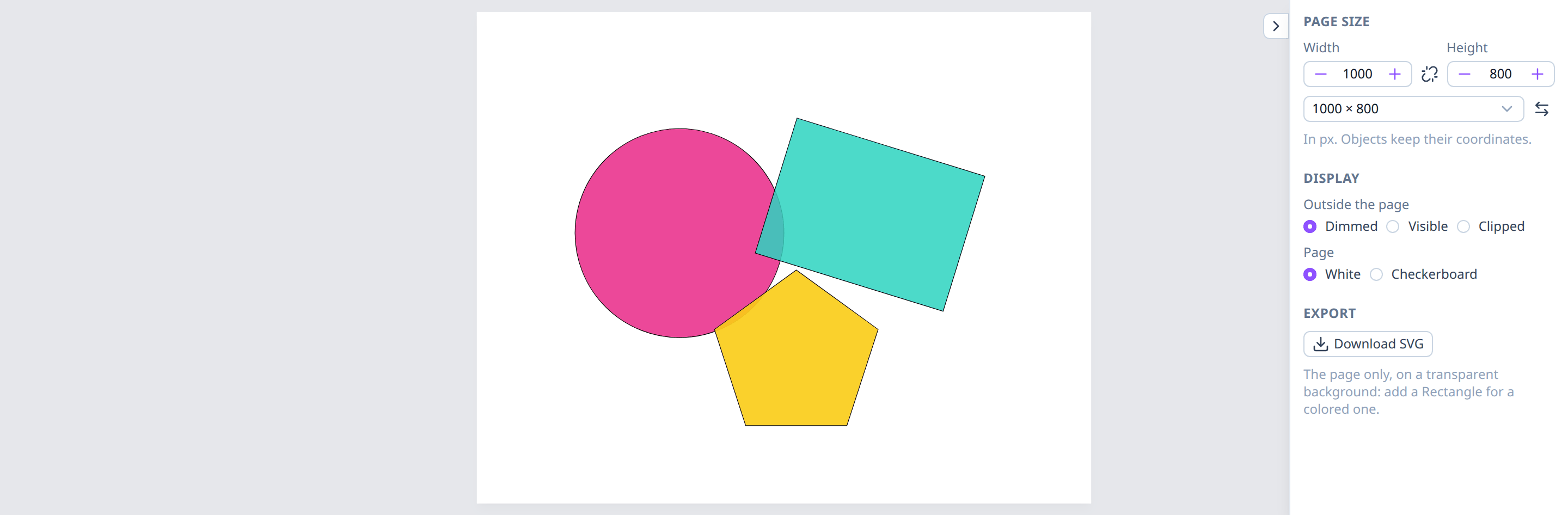
What is drawn
Everything connected to the Output node's
objects input is drawn, in slot order: later slots are drawn on top. In
the picture, the rectangle (slot 1) covers the circle (slot 0), and the
pentagon (slot 2) covers both.
Nodes that aren't connected to the Output, directly or through other nodes, don't affect the drawing. Moving nodes in the editor doesn't either.
The page
The page is the area of the final image. Positions are in page units: (0, 0) is the top-left corner, x grows to the right and y downwards.
Its size is set in the drawer's Page size section, in pixels (1000 × 800 by default):
- type a width and height (whole numbers from 1 to 10 000);
- pick a preset: 1000 × 800, 1000 × 1000, 1920 × 1080, 1080 × 1920, A4 portrait or landscape;
- swap width and height with the arrows button;
- lock the aspect ratio with the chain button: editing one side then scales the other.
Changing the size never moves anything: objects keep their coordinates, so they may end up partly or fully outside the page. To make a drawing follow the page size, use the Page node, which gives the page as a box.
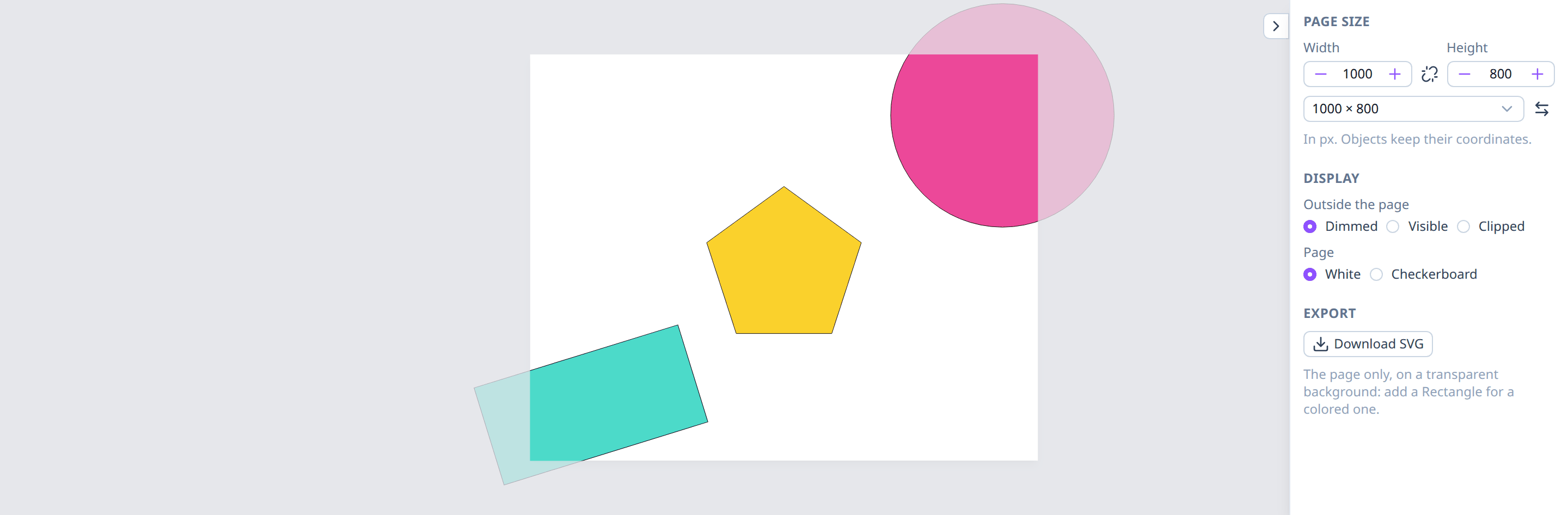
Outside the page
Objects don't have to stay on the page, but only the page is part of the image. The drawer's Display section sets how the preview shows the rest (Outside the page):
- Dimmed (default): drawn, behind a gray veil;
- Visible: drawn as-is;
- Clipped: cut off at the page edge, as in the downloaded image.
Randomness
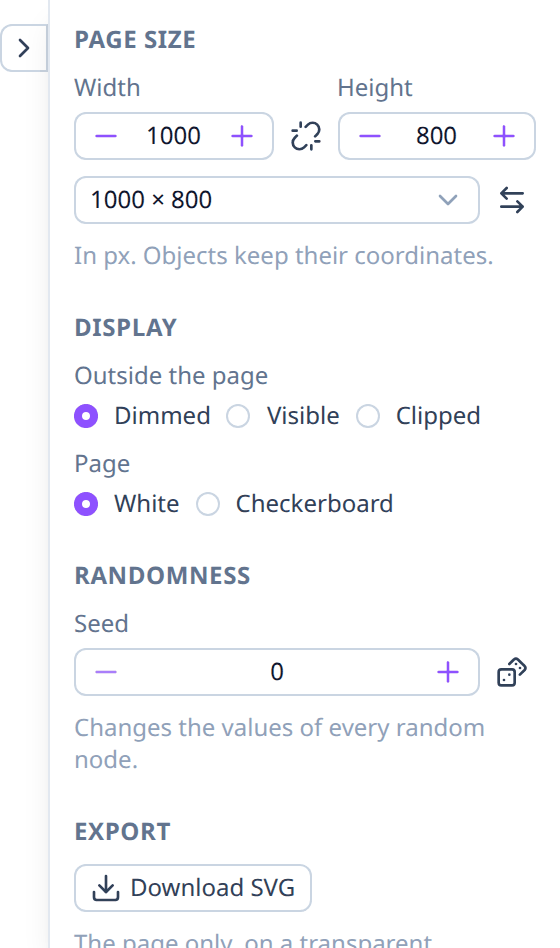
The drawer's Randomness section holds the drawing's seed, which every random node's values derive from (see Determinism and random):
- the dice button picks a new seed: every random node (Random Number, Random Integer, Random Color, and the Noise and Displace effects) gets new values;
- type a seed to get its drawing again, e.g. one you noted down.
The seed is part of the drawing: it's saved with it, and changing it counts as an unsaved change. To reroll only some nodes, give them their own seed in the property inspector.
Page background
The preview's page is White by default. The downloaded image has no background at all, though: where nothing is drawn, it's transparent. Pick Checkerboard under Page to see which parts are transparent; a translucent fill shows the squares through it.
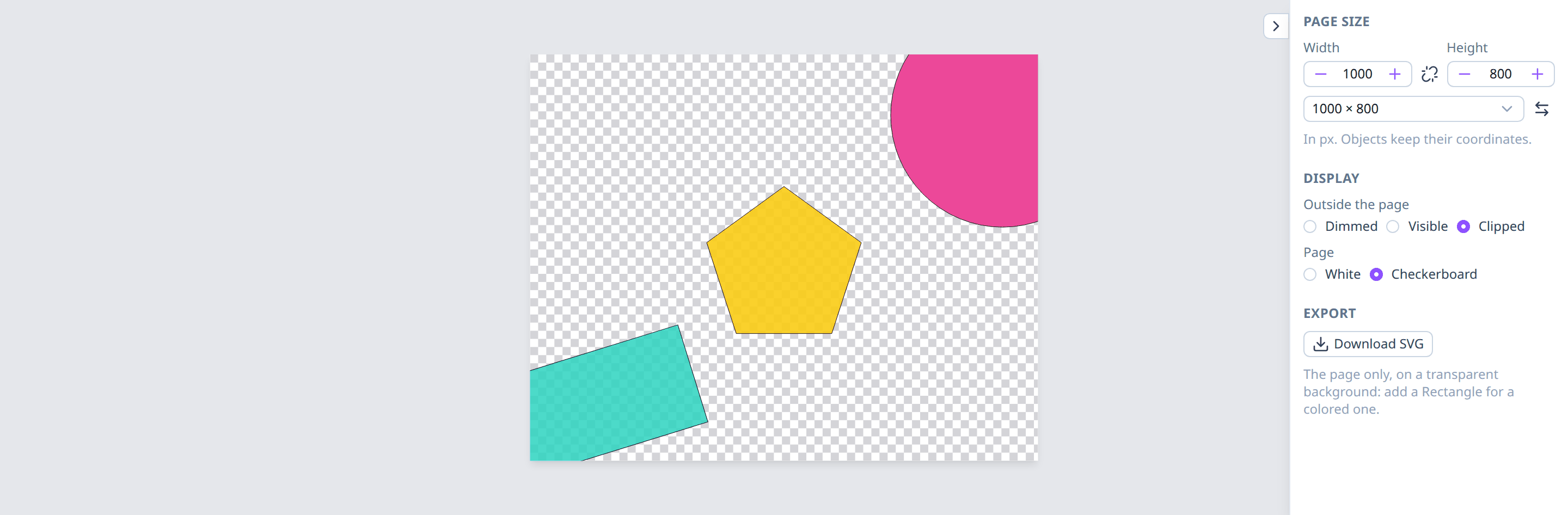
The display options only change the preview, never the drawing or the downloaded image. The browser remembers them, like whether the drawer is open: collapse or expand it with the tab on its left edge.
Downloading the image
Download SVG, in the drawer's Export section, saves the image as
wirepaint.svg. It opens in browsers and in vector editors such
as Inkscape or Illustrator.
- It's the page only, at its size: anything outside the page is cut off.
- It has a transparent background: the preview's white page isn't part of it.
- Objects that can't be drawn (see Errors) are left out, as in the preview.
- Effects (shadows, blur, grain…), opacity and blend modes are in it, as standard SVG filters that vector editors show too.
To give the image a background color, draw it yourself: a Rectangle the size of the page, in the Output's first slot so everything else is drawn over it.
- Add a Page node and a Break BoundingBox,
and connect Page's
boundsto it. - Add a Make Rectangle. Connect the box's
centerto itsposition, itswidthtowidthand itsheighttoheight, and set itsfillin the inspector. - Connect the rectangle to the Output.
If the Output already had wires, the rectangle lands in the last slot, on top of everything. To move it to the bottom, do this once for each of the other objects: drag the wire in slot 0 onto empty canvas to remove it, then connect that object again to the empty slot at the end. The rectangle moves up to slot 0, and the others keep their order (see Connecting pins).
The rectangle follows the page size too. For a gradient background, connect
a Make LinearGradient to its fill, as in the
gradients example.
Panning and zooming
- Pan: drag the page.
- Zoom: scroll the wheel; the view zooms around the pointer.
This only changes the view, not the drawing.
See also
- Effects: shadows, blur, glow and more, drawn in the preview and the download.
- Errors: when part of the drawing is missing.
- Units and coordinates.
- Dataflow and the Output node.
- Page: the page as a box, for drawings that follow its size.
- A glowing ball in a gradient frame: gradient fills and outlines.