



Subgraphs
A subgraph is a graph of its own, inside your drawing's graph. It's used in two ways:
- as a node: a node named after the subgraph, with its params as inputs and its results as outputs;
- as a function for Map, Filter, Reduce and Repeat, which call it once per element or per step.
See Subgraphs and functions for how they work. The quickest way to make one is New function… (below); the triangles on a grid example uses it.
The Subgraphs tab
The panel next to the graph editor has two tabs: Inspector (the property inspector) and Subgraphs, the list of your subgraphs.
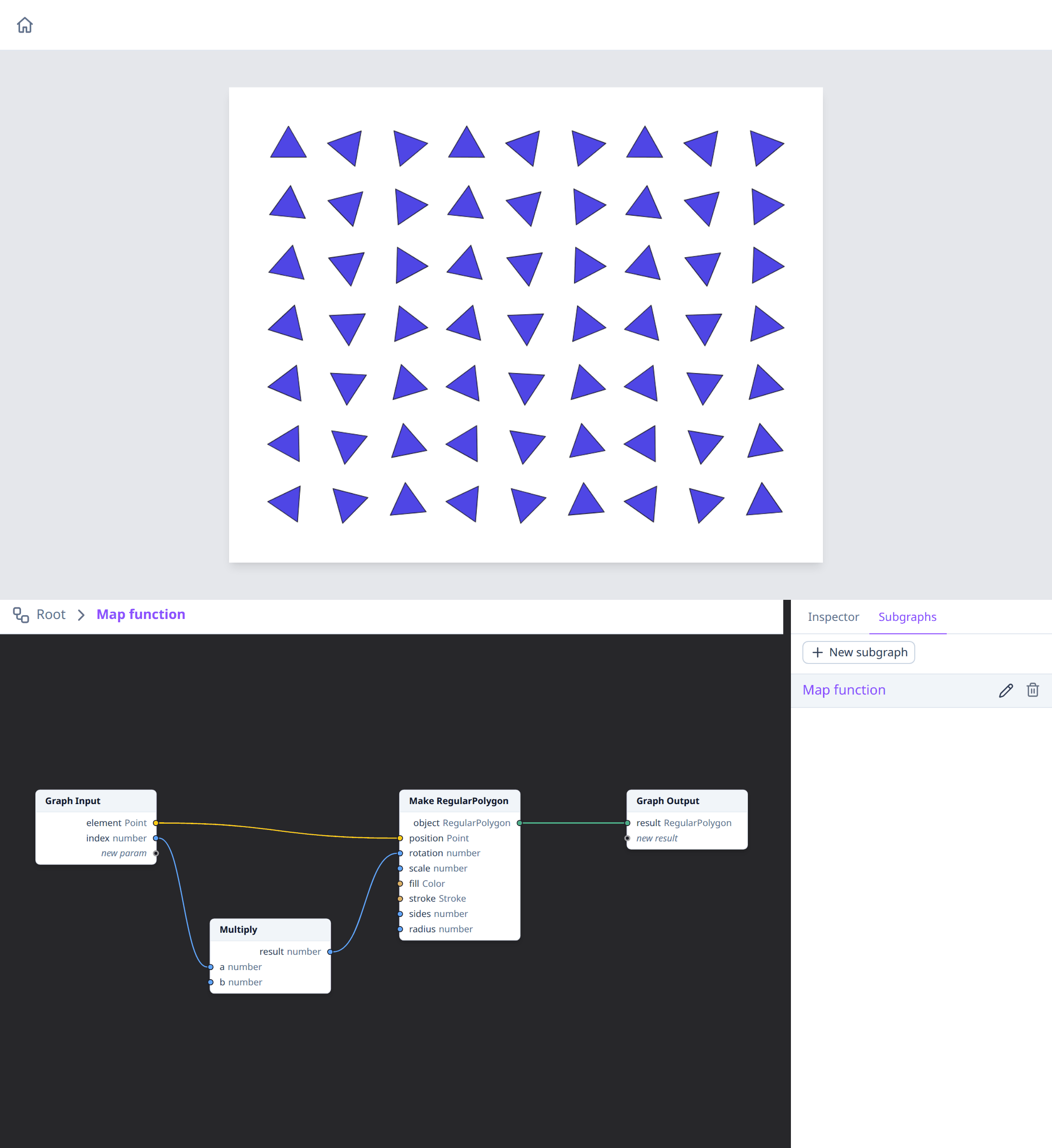
- New subgraph creates one, named "Subgraph 1", "Subgraph 2"…, and opens it. It starts with no params and no results.
- Click a name to open the subgraph's body.
- Rename with the pencil, or by double-clicking the name: type, then press Enter (or click elsewhere); Escape cancels. The subgraph's nodes everywhere and its entries in the add-node menu take the new name. Renaming one of its nodes does the same. Each subgraph needs a name of its own: one another subgraph has, even in another case, is refused.
- Delete with the bin. It's disabled while the subgraph is used somewhere: hover over it to see where, and remove those nodes first.
The open subgraph, and the ones on the path to it, are highlighted.
Opening and leaving a body
When a body is open, the graph editor shows it instead of the main graph, and the breadcrumb above the editor shows where you are: "Root › Map function". Click Root, or any level, to go back to it.
You can also open a body from a node that uses it: double-click a subgraph's node or function node (not its title, which renames the subgraph). Opened that way, the body is one level deeper in the breadcrumb, so you can go back to where you came from. If that subgraph is already in the breadcrumb (its own node inside its body, see Recursion below), the editor goes back to its level instead of adding it again.
A body is edited like the main graph: add nodes, connect them, move, rename and delete them, and set their inputs in the inspector. Each graph keeps its own node positions.
The preview always draws the main graph. Editing a body that the main graph uses redraws it straight away.
Graph Input and Graph Output
Every body has a Graph Input node, whose outputs are the subgraph's params (the values it's given), and a Graph Output node, whose inputs are its results (the values it gives back). Together they are the subgraph's signature.
Editing the signature
Select Graph Input to edit the params, or Graph Output to edit the results. The inspector shows one row per pin:
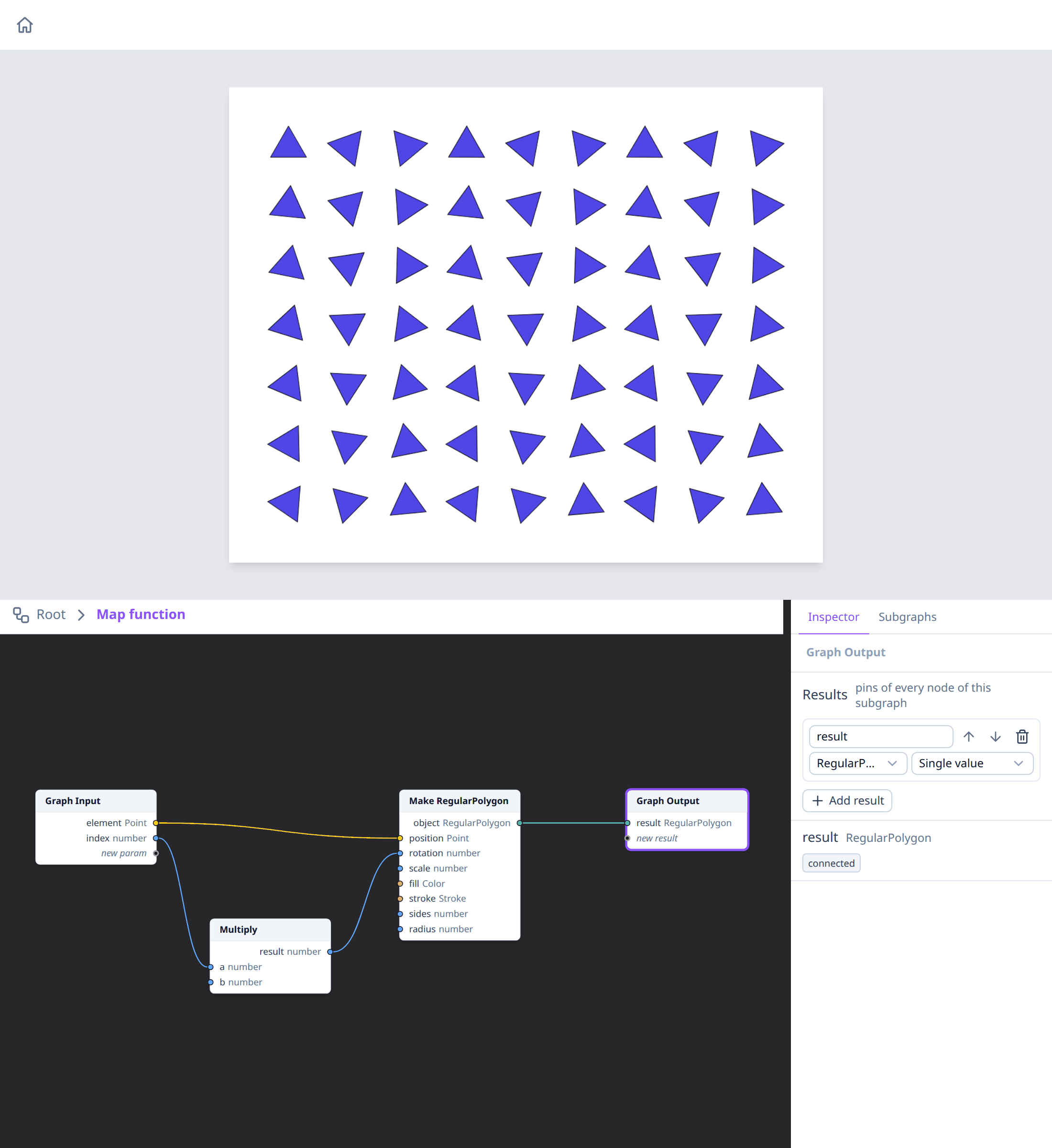
- the name: type a new one and press Enter. Names must be filled in, and different from the other params (or results);
- the type: a value type (number, boolean, string), any object type
(Point, Color, Circle… or Renderable for any shape), or an enum; and
next to it, Single value or an array of it (
Array<…>); - the arrows reorder the pins, the bin removes one;
- Add param / Add result adds a pin of type number.
Every node of the subgraph updates at once. Wires that no longer fit a changed pin are removed, and a message says how many.
Creating pins with wires
Graph Input has an empty new param output, and Graph Output an empty new result input. Drag a wire from a node's output onto new result (or from new param onto a node's input): it creates a result (or param) with the type of the pin at the other end, named after that pin, and connects the wire. Rename or retype it in the inspector afterwards.
A pin whose type isn't decided yet (a hollow, generic pin; see Generic pins) can't make a pin: connect it first, so its type is known.
Creating a subgraph from selected nodes
To turn part of a graph into a subgraph, select the nodes and choose Create subgraph from selection in the Edit menu or the context menu. The nodes move into a new subgraph ("Subgraph 1", "Subgraph 2"…), and a node using it takes their place, wired like they were:
- each output outside the selection that fed the nodes becomes a param, named after the pin it fed;
- each of their outputs that fed nodes outside becomes a result, named after the output;
- wires between the selected nodes stay inside the body, between Graph Input and Graph Output.
The new node is selected; double-click it to open the body. It's one step: Ctrl+Z undoes all of it.
The Output node, a body's Graph Input and Graph Output, and frozen nodes stay outside: a message says how many. Random nodes draw other values inside a subgraph, since each call gets its own random numbers. If a wire's type isn't known yet (a generic pin whose inputs aren't connected), nothing changes and a message says which pin; connect it first.
New function…
To give Map, Filter, Reduce or Repeat a function in one step:
- drag a wire from its
functioninput and drop it on empty canvas, then choose New function…, the first entry of the menu; - or right-click the node and choose New function… (enabled while its
functioninput is free).
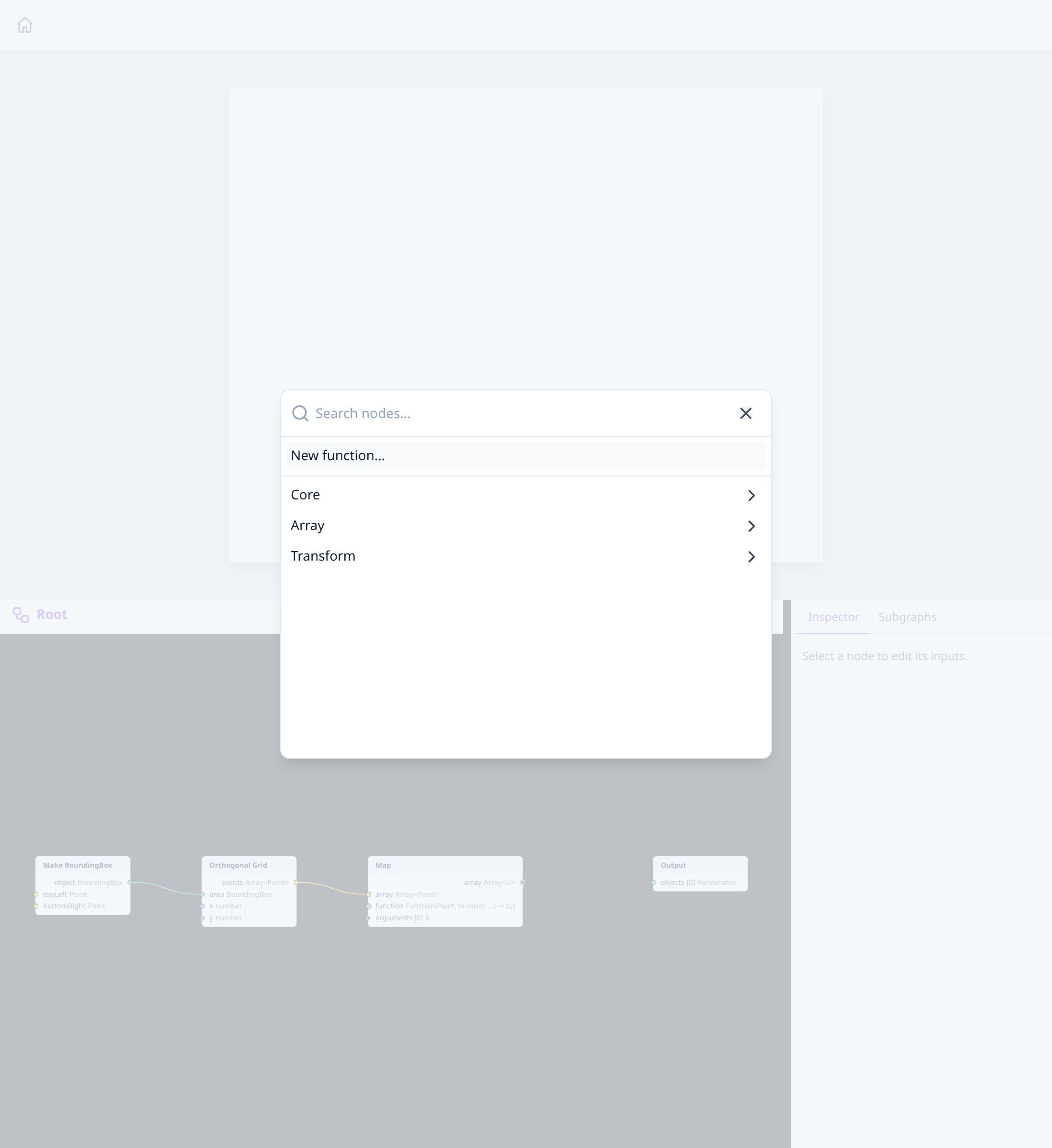
It creates a subgraph named after the node ("Map function"), with the
params the node passes: for Map, element (the type of the array's
elements) and index, plus one param per value connected to its
arguments. Its function node is placed and connected, and its body
opens.
Types the node doesn't know yet start as number. Map's result, for instance, can be anything: change it in the inspector to what the function makes, such as RegularPolygon, and Map's output follows.
Errors inside a body
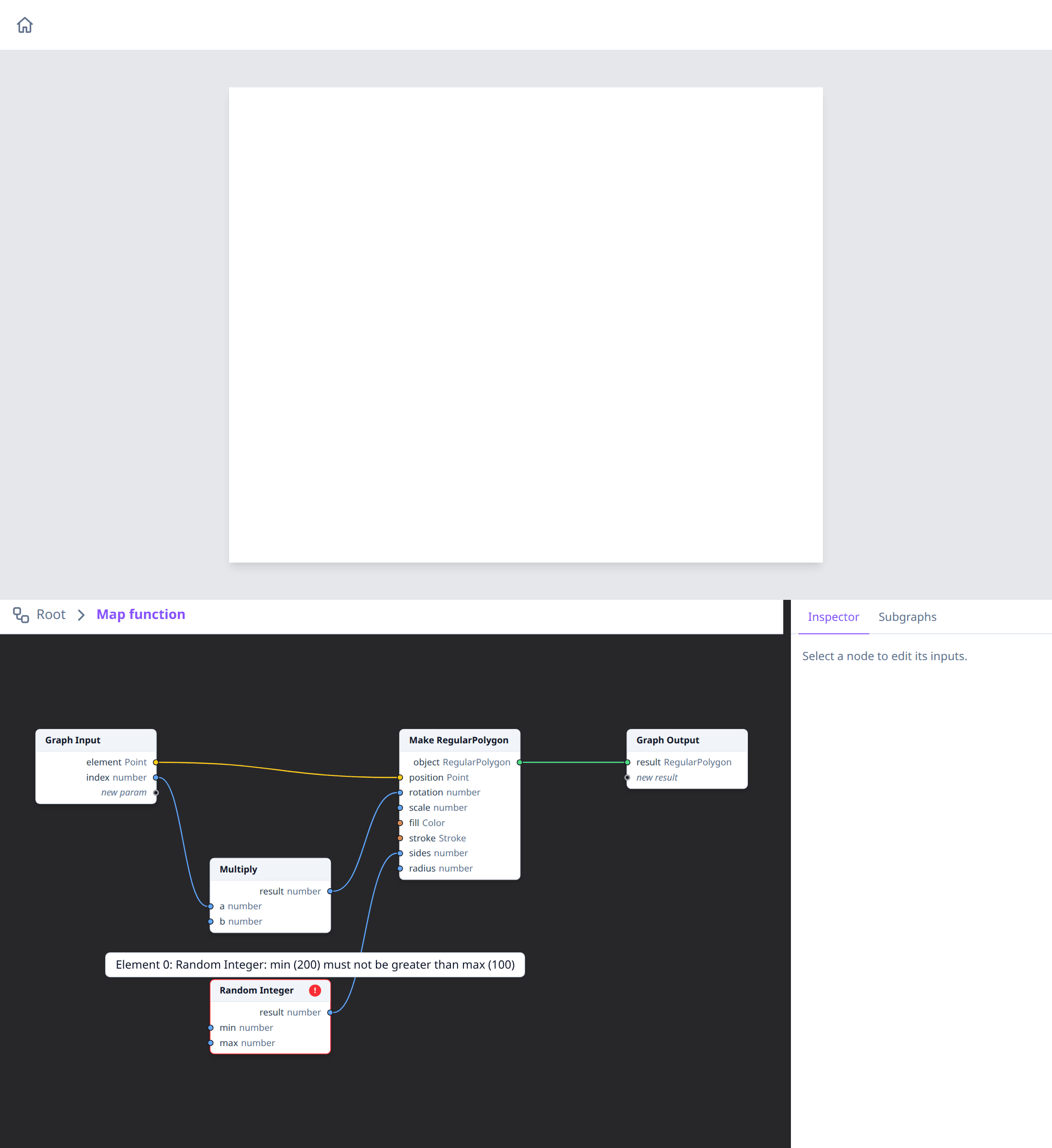
If a node inside a body fails, the node that called the function (Map,
for instance) is marked with the error in the main graph. Open the body to
see which node failed: it's marked the same way, and its message starts
with the call that failed, such as "Element 0" for Map, Filter and Reduce
(counting from 0, like index) or "Iteration 3" for Repeat.
Errors of the body itself, such as a missing Graph Output, show in the top-left corner of the image area while the body is open. See Errors.
Recursion
A subgraph can call itself: its node and its function node are in the add-node menu inside its own body too (under Subgraph), and so are the nodes of subgraphs that call it back.
Every recursion needs a base case, where it stops calling itself:
- with a Switch: connect a test such as
"
depth≤ 0" (Lower or Equals) to itscondition, the result of the base case tothen, and the result of the recursive calls toelse. Passdepth− 1 to the calls (Subtract), so it gets down to 0. Only the branch Switch picks is evaluated, so at depth 0 no more calls are made; - or with Map or Filter, over an array that gets shorter on every call: over an empty array, they call nothing.
The Sierpinski triangle example builds one step by step.
Limits
A recursion without a working base case would go on forever. To keep the browser responsive, a node of the main graph may nest at most 64 calls deep, and make at most 10 000 calls in all, the calls of Map, Filter, Reduce and Repeat included. Beyond either, the node fails with "Recursion deeper than 64 calls: check the base case" or "More than 10 000 calls", and nothing is drawn from it. The rest of the drawing still is.
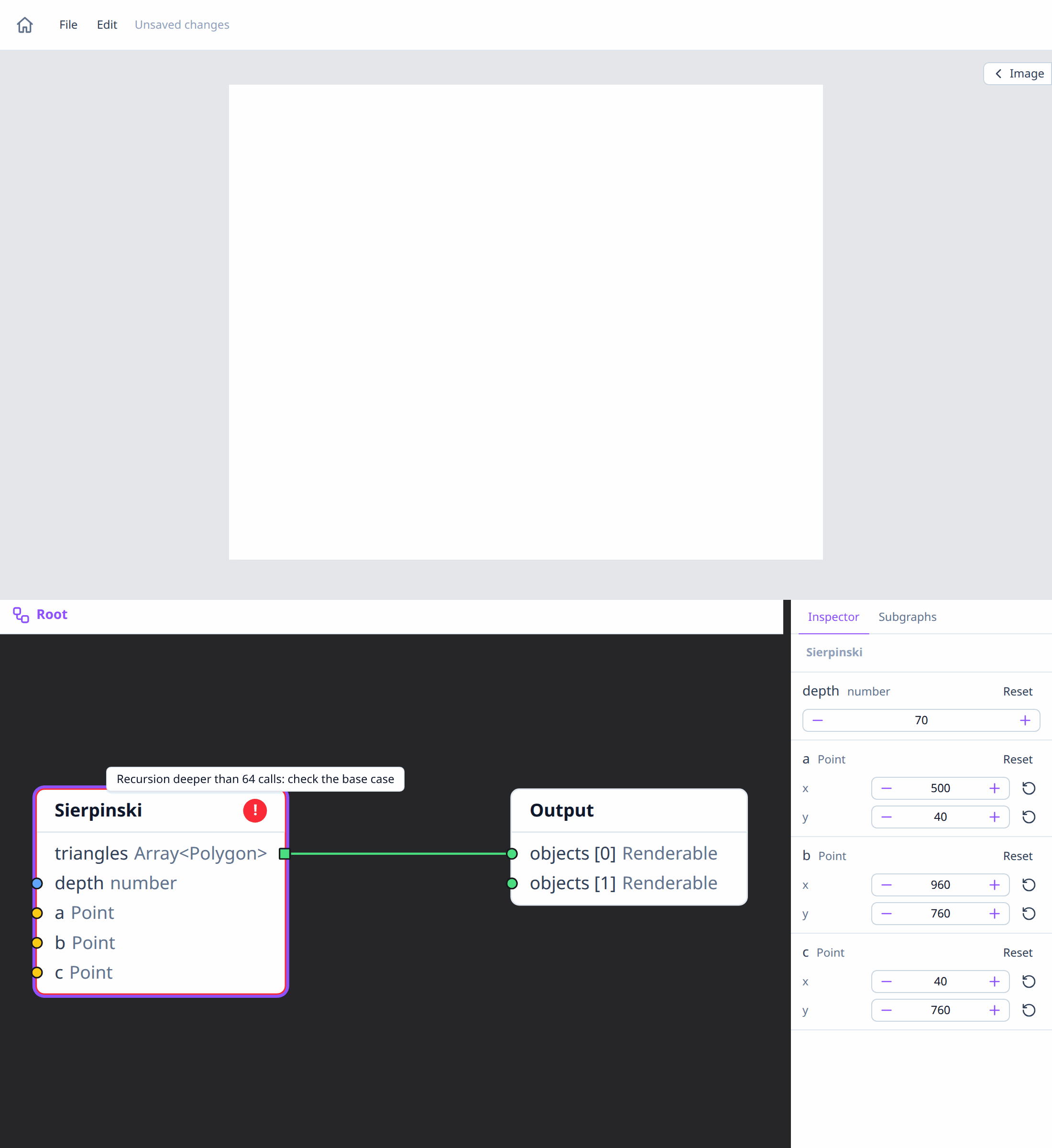
A recursion that splits into three, like the Sierpinski triangle, makes 1 + 3 + 9 + … calls: depth 8 is 9 841 calls, depth 9 too many.
Errors in a recursive body
When a node fails deep inside a recursion, the main graph marks the node that called the subgraph. Open the body: the node that failed is marked, with its message, not the subgraph's own nodes on the way down to it. With Map, Filter, Reduce or Repeat on the way, the message starts with the calls that failed, the first and the last when there are many: "Element 1 › … › Element 3: …".
See also
- Subgraphs and functions.
- Triangles on a grid: a worked example with Map.
- Sierpinski triangle: a recursive subgraph.
- Composite types, for function types.