



Saving and opening
The Playground doesn't save on its own: a drawing lives in the page until you save it to a file. Reloading or leaving the page loses anything unsaved.
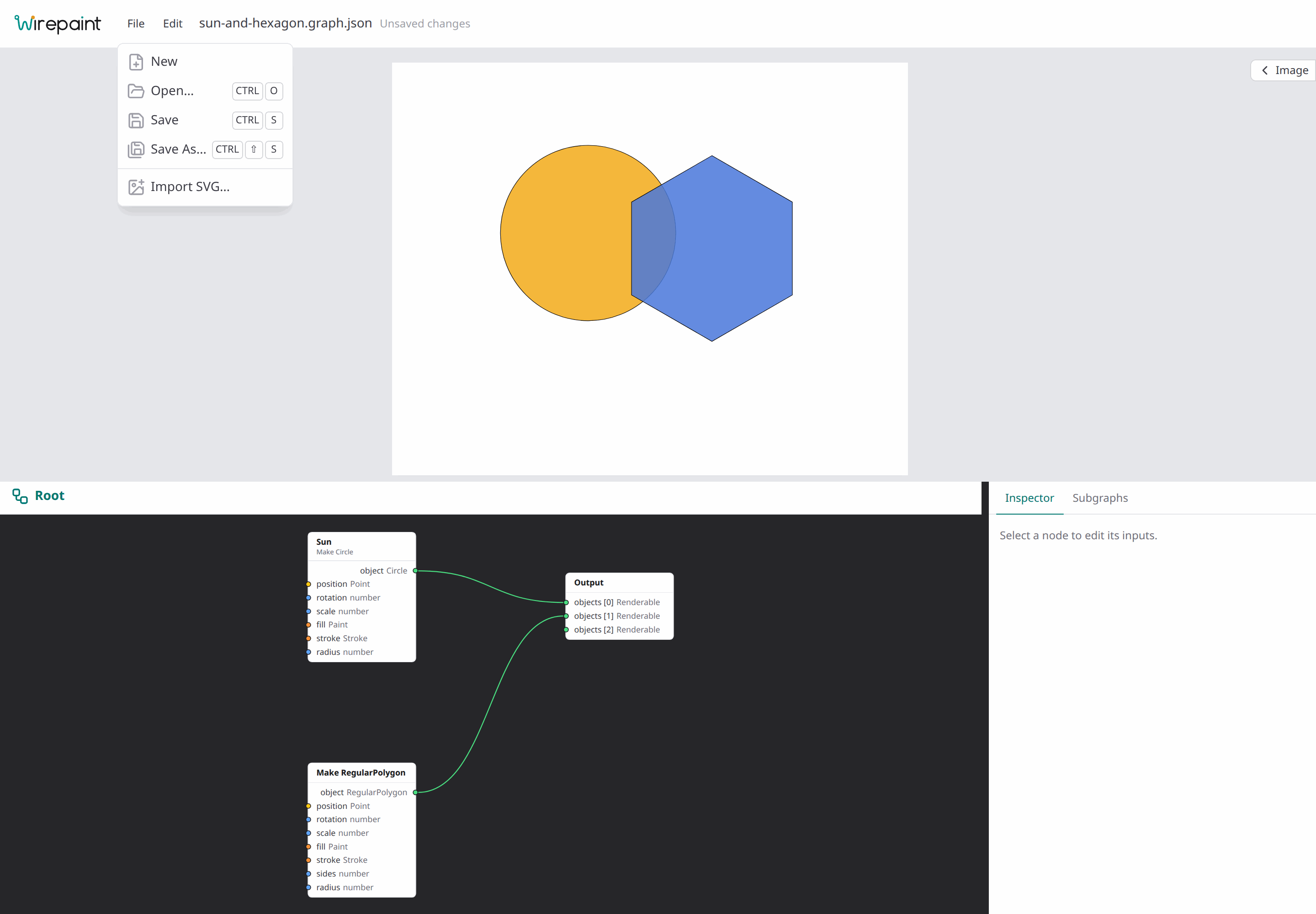
The File menu
The File menu, at the top left of the Playground, has these commands:
- New starts an empty drawing: a graph with only its Output node, on a 1000 × 800 page.
- Open… (Ctrl+O, ⌘O on macOS) picks a file and opens it in place of the current drawing. The editor goes back to the root graph.
- Recent Files opens a file you opened or saved lately again (see Recent files).
- Save (Ctrl+S, ⌘S on macOS) saves the drawing to its file.
- Save As… (Ctrl+Shift+S, ⇧⌘S on macOS) saves it to a new file, which becomes the drawing's file.
- Import SVG… adds SVG files to the drawing (see Importing SVG files).
The name of the drawing's file shows next to the File and Edit menus, or Untitled for a drawing that hasn't been saved or opened yet.
Saving to the same file
How saving works depends on the browser:
- Chrome, Edge and other Chromium browsers save straight to the file. Open… and Save As… show the system's file dialog, and the Playground remembers the file: each Save writes over it, with no new download. Save on a drawing without a file asks where to save it first, like Save As…. The browser may ask once whether the Playground can edit the file.
- Firefox, Safari and other browsers download the drawing instead,
named after the file it was opened from, else
drawing.graph.json. The browser puts it with your other downloads, or asks where, depending on its settings. Each save is a new download, and Save As… does the same as Save: rename the files to keep several versions.
If a Chromium browser refuses the file dialog or access to the file, the Playground downloads the drawing instead too.
The shortcuts work anywhere in the Playground except while typing in a field, such as a node's name or a value in the inspector. They replace the browser's own "save page" and "open file".
Recent files
In Chromium browsers, File › Recent Files lists the last 10 files you opened or saved with the file dialog, most recent first, with when you last did. They're kept in the browser, so they're still there on your next visit. Choosing one opens it like Open…, without the dialog; the browser may first ask whether the Playground can edit the file again.
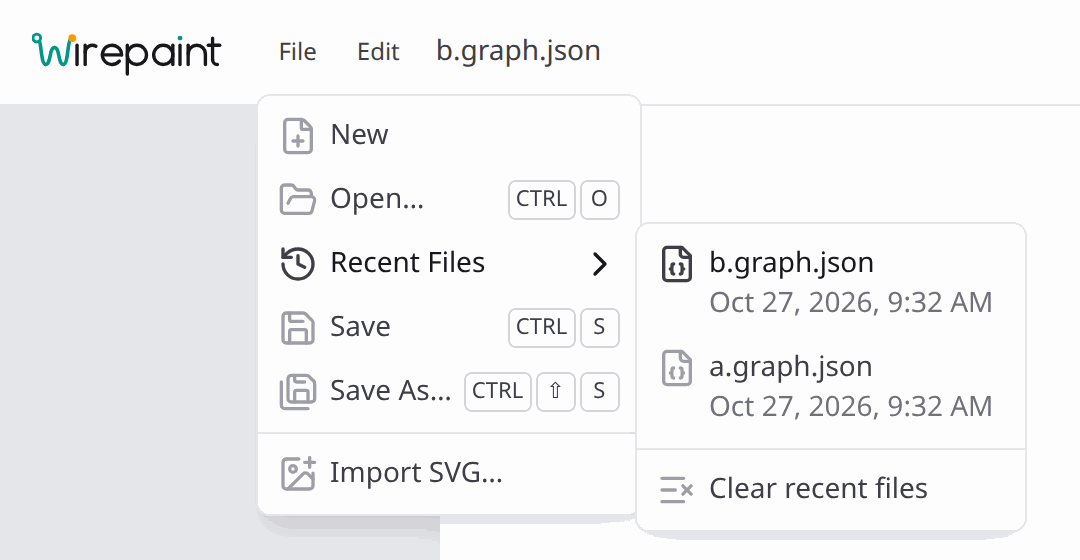
If a file was moved, renamed or deleted since, the Playground says so and offers Remove from list. Clear recent files, at the bottom of the list, empties it; the files themselves aren't touched. Files opened or saved by download, in other browsers, aren't listed, and those browsers don't show Recent Files.
What a file holds
A file holds everything that makes up the drawing:
- the root graph and every subgraph, with their signatures;
- each node's values, parameters, position in the editor and name, and the saved value of frozen nodes;
- the wires, in the order they were made, so generic pins and Output slots come back exactly as they were;
- the page size.
It doesn't hold how you were looking at it: the pan and zoom, the open subgraph, the selection, the Image drawer's display options and the panel sizes stay as they are in the browser.
Unsaved changes
While the drawing has changes since it was last saved, opened or started, Unsaved changes shows after the file name. Any edit counts, including moving or renaming nodes and changing the page size. Looking around doesn't: panning, zooming, selecting and opening subgraphs. Undoing back to the saved drawing clears it.
Files hold the drawing, not its undo history: after Open… (or New) there's nothing to undo.
With unsaved changes, New and Open… ask first:
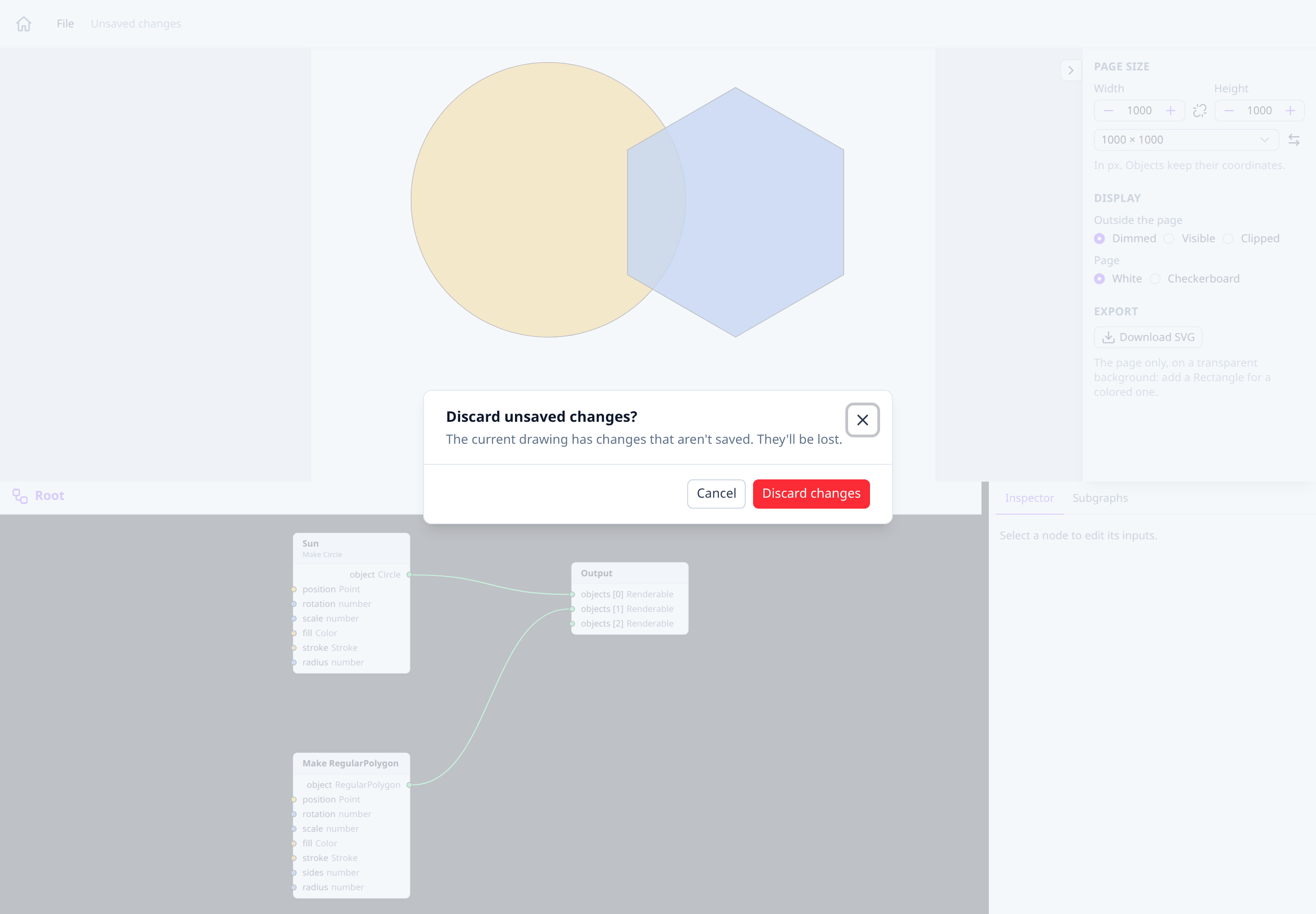
Cancel keeps the drawing as it is; Discard changes goes ahead. Without unsaved changes they don't ask. Reloading or leaving the page with unsaved changes shows the browser's own warning.
Importing SVG files
An existing SVG file, such as a logo, an icon or a drawing made in another editor, can go into the drawing as one object. There are three ways to import one:
- File › Import SVG… picks one or more files. Each becomes an SVG Image node in the graph you have open, at the centre of the editor's view.
- Drag and drop SVG files from your file manager onto the graph editor: the nodes land where you drop them.
- Choose file… in the property inspector of an SVG Image node (for example one added with Shift+A). With a file already there, the button reads Replace file…: the node keeps its wires, position, rotation and scale, and only the drawing changes.
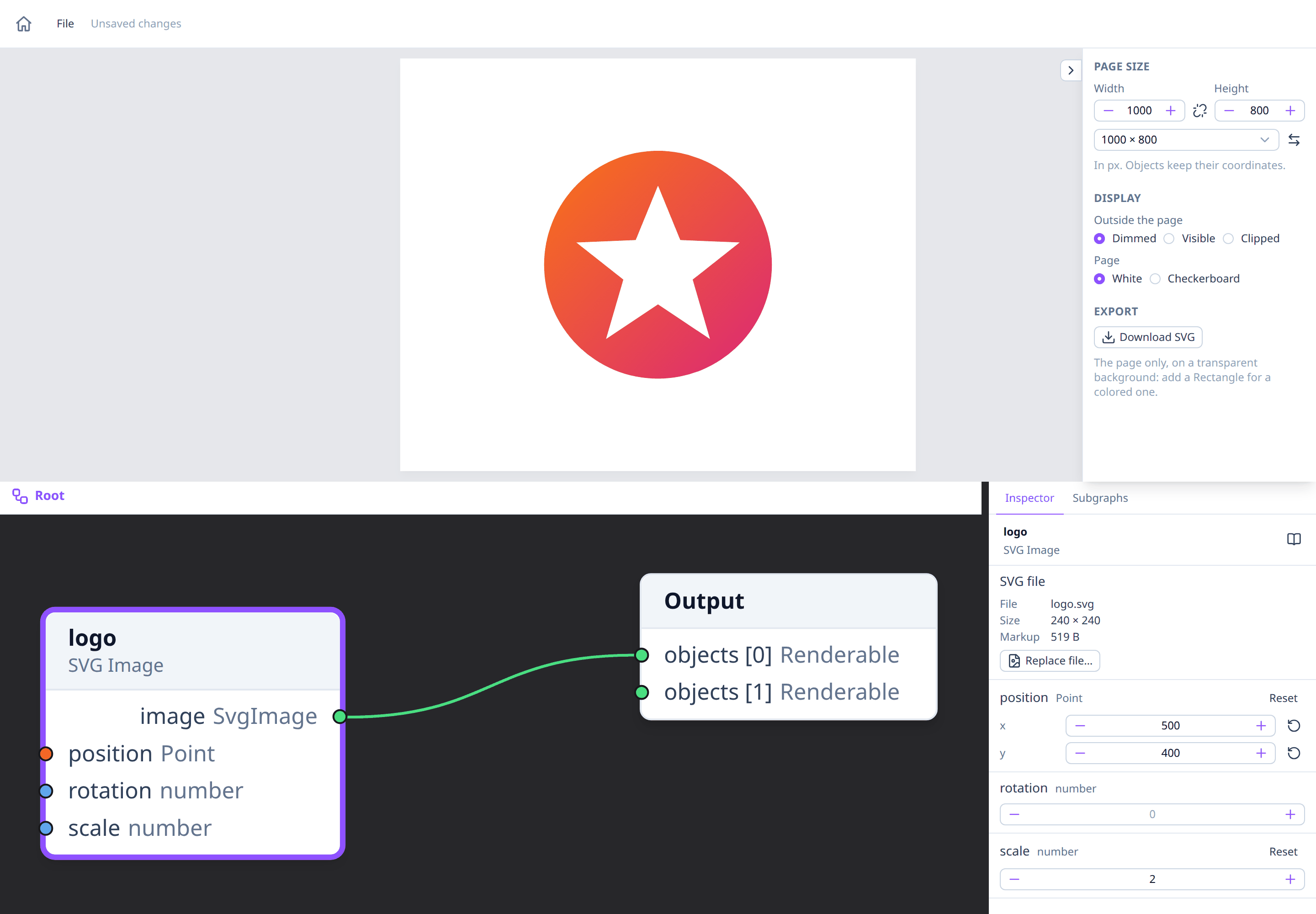
The node is named after the file and selected. Connect its image output
to the Output (or into a Group, or through a Translate or Rotate node) to
draw it. The inspector shows the file's name, its size and how much space it
takes in the drawing's file.
An imported SVG is one object: it can be moved, rotated and scaled, but not changed or taken apart into shapes. It's drawn the way a browser shows an SVG picture, so scripts in the file don't run, and anything it loads from elsewhere (linked images, web fonts) doesn't show. The file's content is saved inside the drawing's file, so the drawing opens without it.
A file isn't imported, with a message saying why, when it:
- isn't an SVG file, or isn't valid XML;
- has no size: its
<svg>element needs awidthandheight(not in percentages) or aviewBox; - is larger than 1 MB.
Files that can't be opened
A file that isn't a Playground drawing, is damaged or was edited by hand into something invalid isn't opened. A message lists what's wrong, and the current drawing stays as it was.
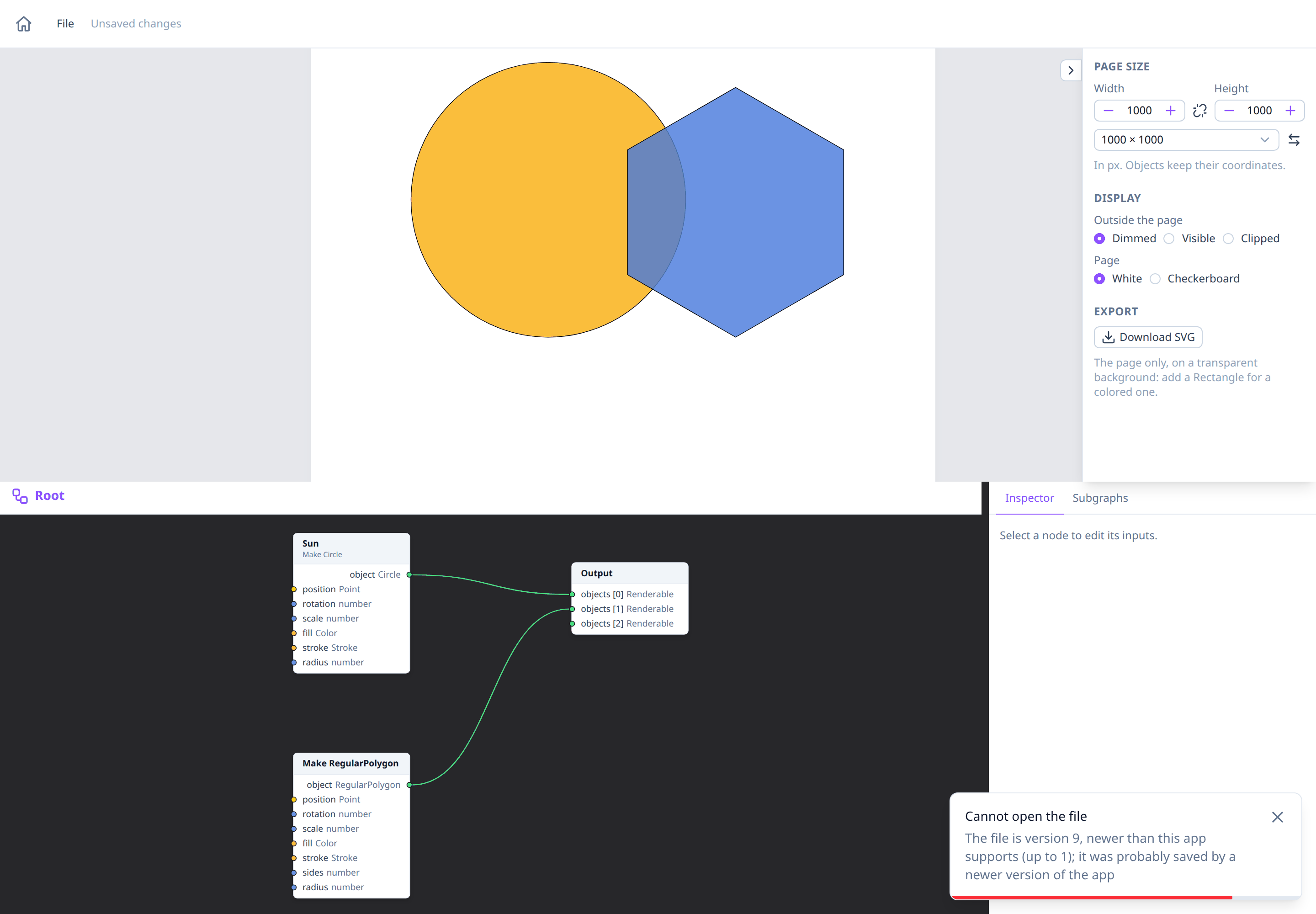
A file saved by a newer version of the Playground may use things this version doesn't know: the message says so. Files saved since frozen nodes were added (version 2 of the file format) can't be opened by older versions of the Playground; older files still open.
See also
- Getting started: the Playground's areas.
- Subgraphs: what a file keeps besides the root graph.
- Live preview: the page size, and downloading the image as SVG.
- SVG Image: the node an imported file becomes.
- Undo and redo.
- Freezing nodes: values kept in the file.