



Text
Text is a shape like the others: add a Make Text node (Shift+A, then search "text"), connect it to the Output, and set it up in the property inspector. It has a fill and an outline like any shape, and moves, rotates and scales the same way.
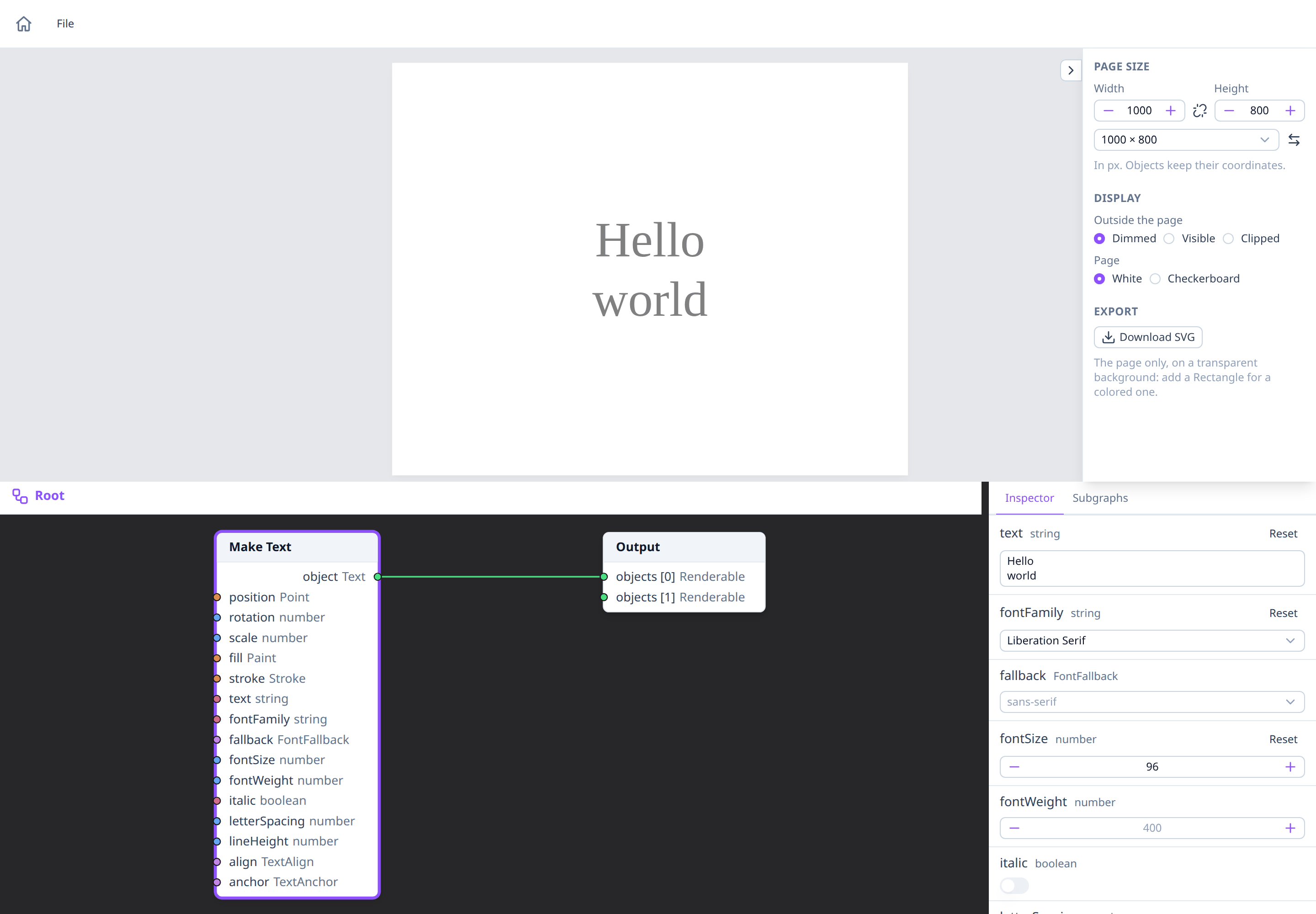
Writing the text
The text field takes several lines: Enter starts a new line, and
Ctrl+Enter (⌘Enter on macOS) or leaving the field applies it.
Escape puts back what was there. Lines are lineHeight times the font
size apart (1.2 by default).
Choosing a font
fontFamily names the font to use. Type a name, such as Georgia, or pick
one from the list, which shows the fonts already used in the drawing.
- Show installed fonts lists the fonts installed on your computer. The browser asks for permission first. It's only offered by browsers that can do this (Chrome, Edge and other Chromium-based browsers); in Firefox and Safari, type the font's name instead. The list isn't saved anywhere.
- A font that isn't on this computer gets a warning under the field: the
text is then drawn in its
fallback, a generic kind of font (sans-serif, serif, monospace…). LeavefontFamilyempty to use the fallback alone.
fontWeight goes from 1 to 1000 (400 normal, 700 bold), italic slants
the text, and letterSpacing adds space after each character, in px. A
font that doesn't have a weight or style shows the nearest one it has.
Placing it
The text is placed around its position:
alignputs each line after (start), around (center) or before (end) the position;anchorsays which part of the text is at the position: thebaselineof the first line (the default), itstop, themiddleof all the lines or thebottomof the last one.
AABB and OOBB give the box of the text as drawn, measured with the fonts of this computer.
On other computers
The Playground draws text with the fonts installed where it's shown, and so does a downloaded SVG wherever it's opened. On a computer without the font, the same drawing shows the fallback instead, with different letter shapes and widths. For a drawing that looks the same everywhere, use a fallback alone or a font that's installed almost everywhere.
See also
- Text: every setting, and how Lerp Text blends them.
- Property inspector: editing values.
- Determinism and random: what else a drawing depends on.