



Adding nodes
New nodes come from the add-node menu, which lists every node that can be added to the graph, by category.
Opening the menu
- Shift+A, with the pointer over the graph editor: the new node goes where the pointer is. With the pointer elsewhere, it goes in the middle of the view.
- Add node… in the context menu of empty canvas (right-click): the new node goes where you clicked.
The new node is selected, so its inputs show in the property inspector. Press Escape to close the menu without adding anything.
Browsing
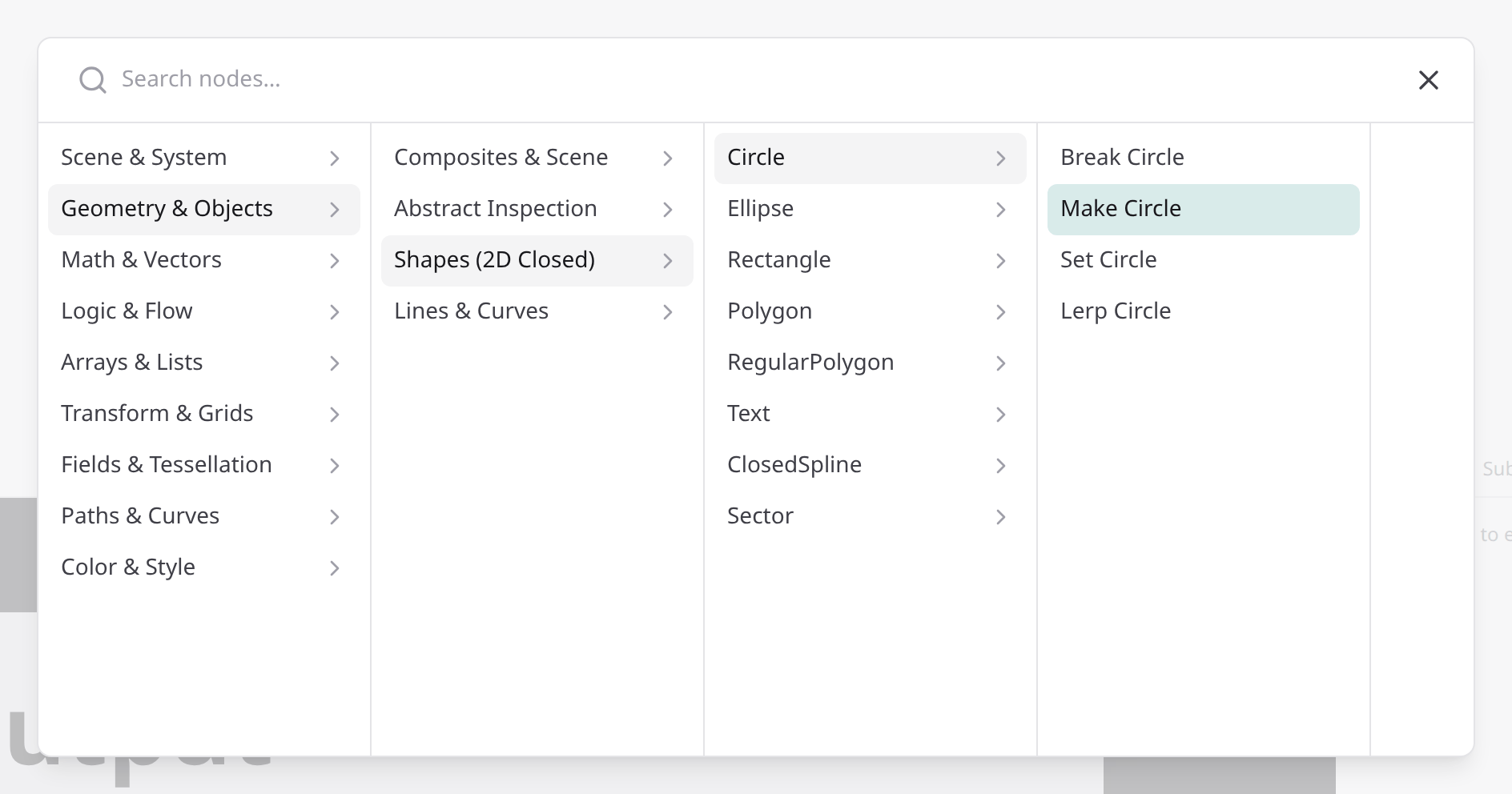
With an empty search field, the menu shows the categories in columns, like a file browser's column view. Click a category to open it in the next column, then its subcategory, then pick a node. Every column you went through stays in view, so you can click back into any of them.
The schema nodes, Break, Make, Set and Lerp, have one more column per type: Geometry & Objects → Shapes (2D Closed) → Circle → Make Circle. They're described on each type's page.
The keyboard works the same way:
- ↑ and ↓ move within a column.
- → or Enter opens the selected category in the next column.
- ← (or Backspace in the empty search field) goes back a column.
- Enter on a node adds it.
Searching
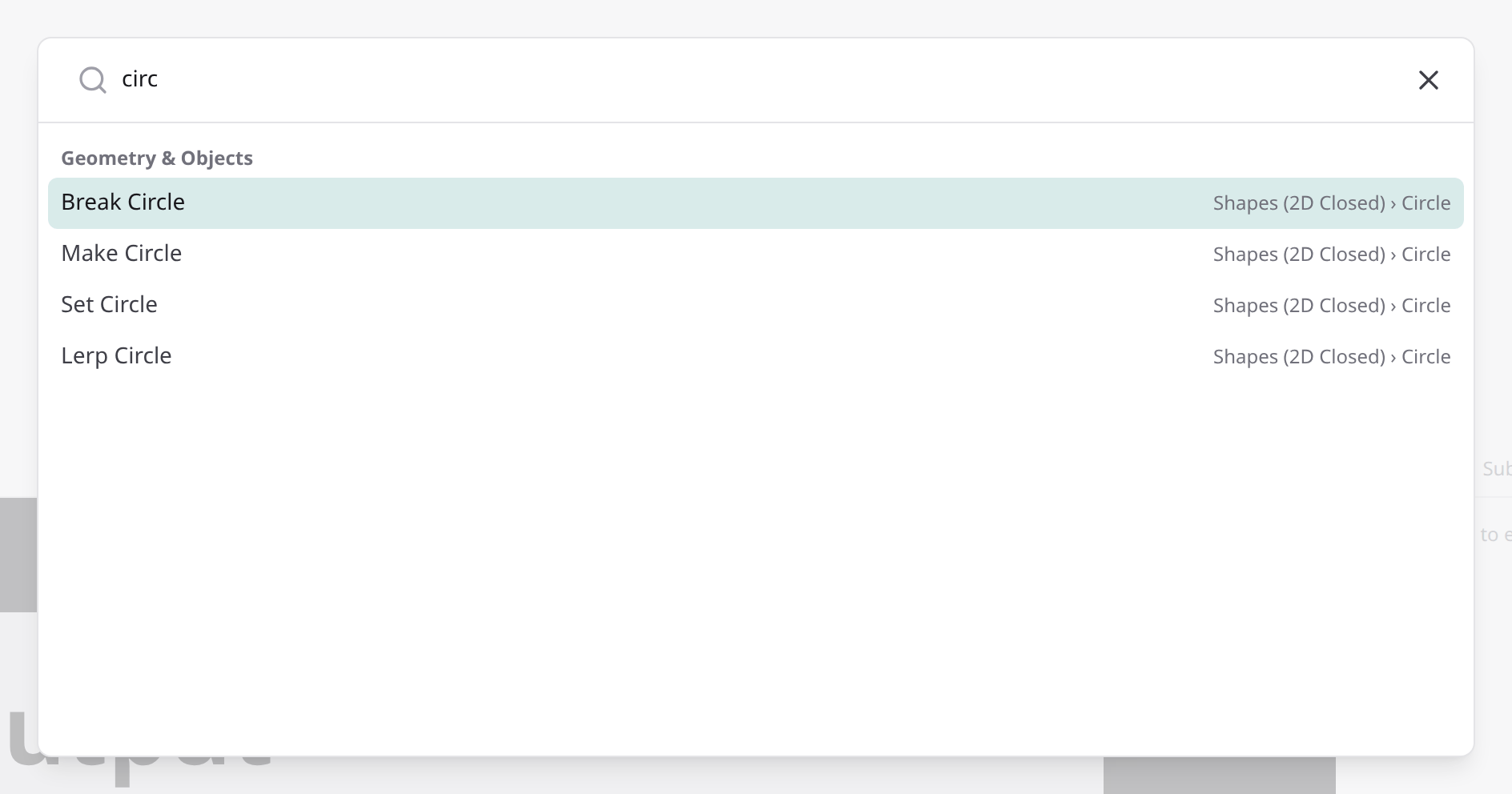
Type to search by node name. The results come from every category, in one list grouped by category, and each shows where it sits in the columns (e.g. Shapes (2D Closed) › Circle). Use ↑, ↓ and Enter, or click a result. Clearing the search brings back the columns as you left them.
Nodes for a dropped link
Drag a new link from a pin and drop it on empty canvas: the add-node menu opens with only the nodes that can take that link, in the same columns (categories without any of them are left out). The chosen node is added at the drop point, already connected through its first compatible pin.
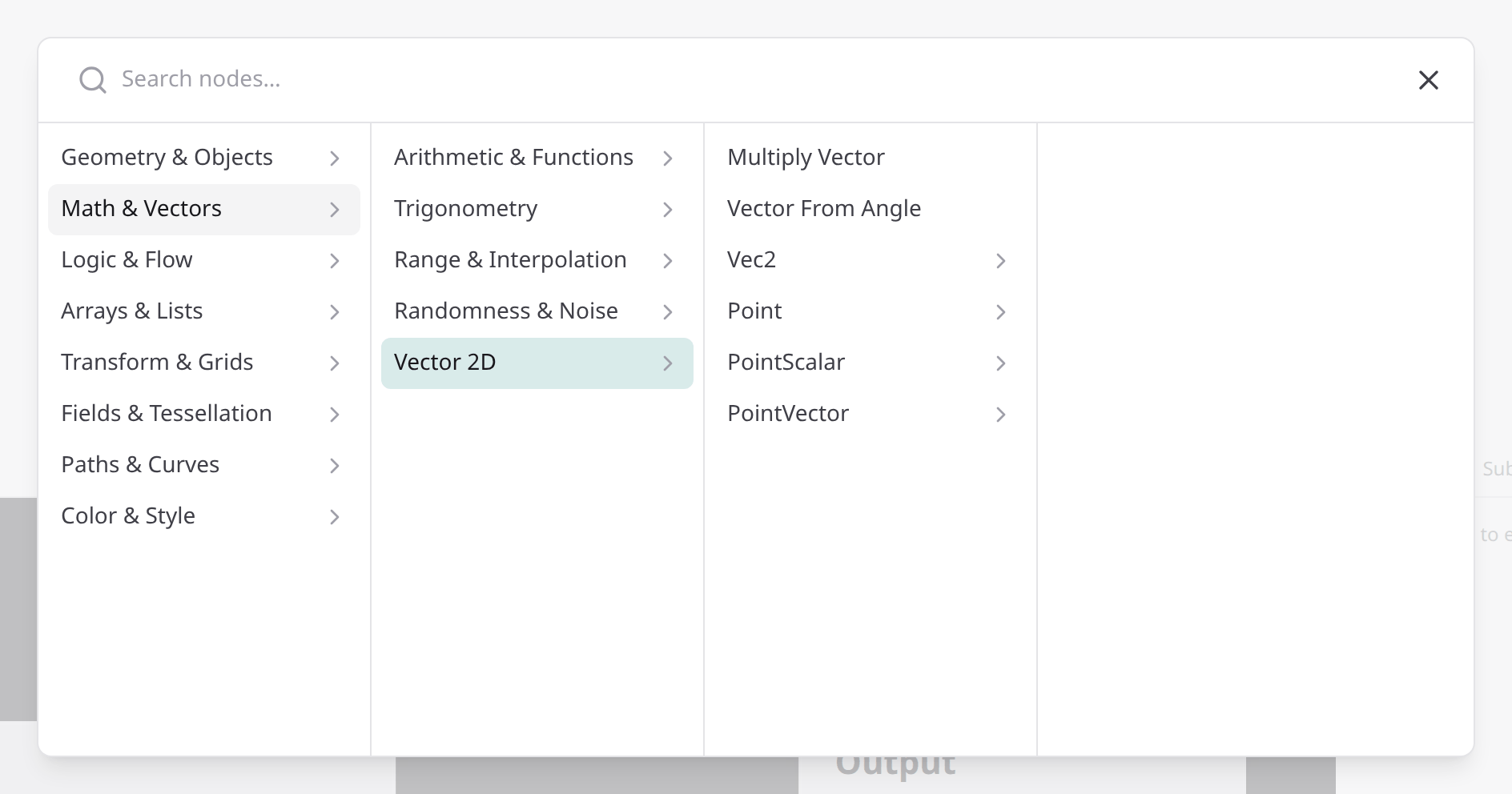
If no node can take the link, a message says so instead.
A link dropped from the empty function input of Map, Filter, Reduce or
Repeat also offers New function… at the top of the first column,
which creates a subgraph that fits; see New function….
See also
- Connecting pins.
- Nodes: every node, by category.