



Paper cut-out
A landscape that looks cut from colored paper and layered on a card: two hills and a sun, each with a slightly uneven edge, a paper grain and a soft shadow on the layer below. Along the way you'll see how effect nodes chain, why their order matters, and how an effect on a group treats the group as one piece.
 Open in Playground
You'll use: Make Rectangle, Make Ellipse, Make Circle, Group, Noise, Displace, Drop Shadow, Output.
Steps
1. A grainy card
Add a Make Rectangle (Shift + A, then type "make rectangle") and
set its position to x 500, y 400, its width to 1000 and its height
to 800: the whole page. Set its fill to r 246, g 238, b 222 (cream) and
its stroke's width to 0.
Add a Noise node (Effects → Noise). Connect the rectangle's object
to Noise's object, set amount to 0.15 and scale to 3, and connect
Noise to the Output.
The hills below reach past the edges of the page. To see the drawing as it will be downloaded, open the Image drawer and set Outside the page to Clipped (see Live preview).
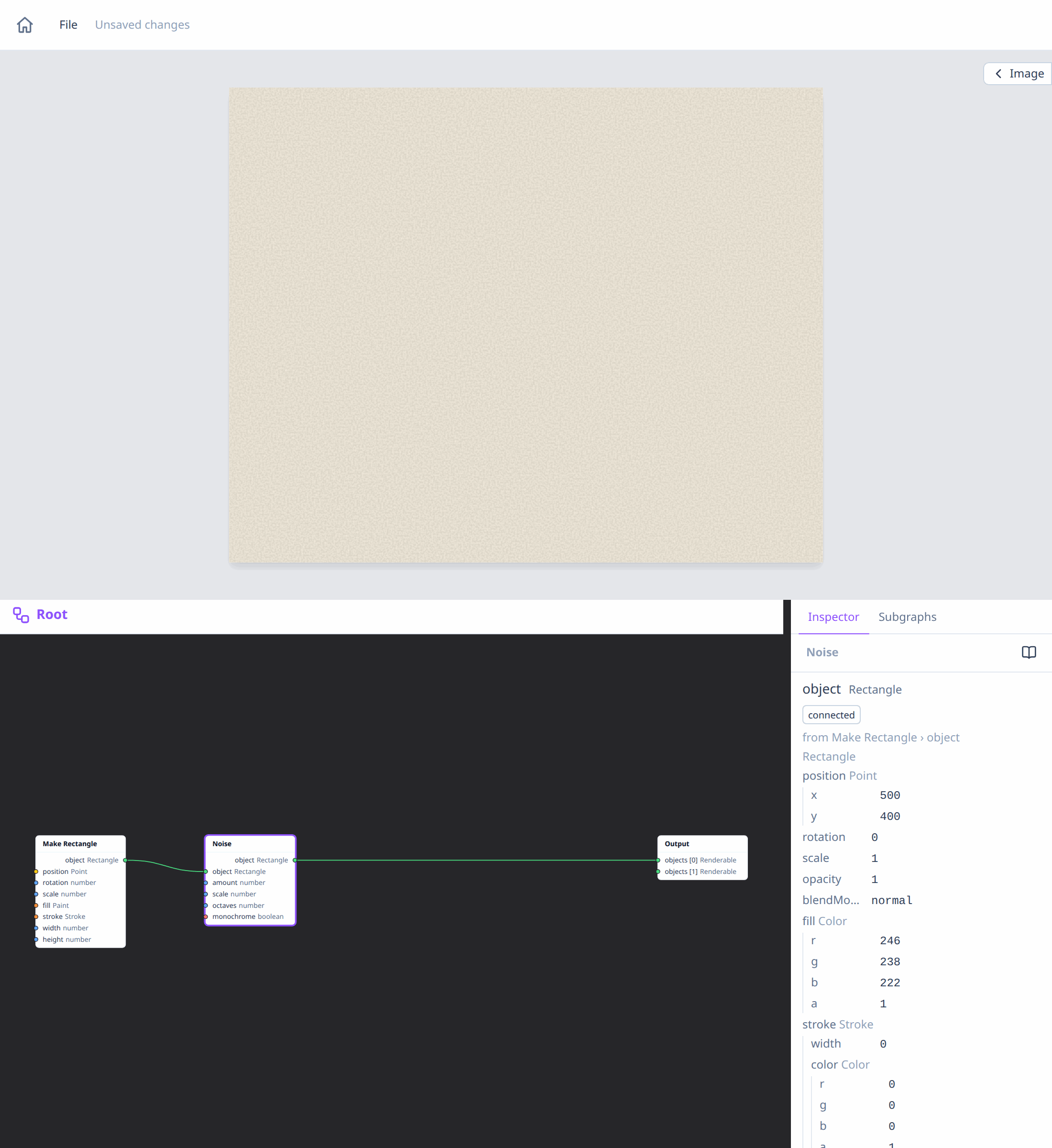
The grain only covers the rectangle: Noise mixes it into the object's own
shape. Its scale is in page units, so a bigger card would get the same
grain size.
2. The back hill
Add a Make Ellipse with position x 620, y 680, radiusX 380,
radiusY 230, fill r 120, g 170, b 120 (sage green) and stroke width
0.
Now chain three effect nodes after it, each one's object output into
the next one's object input:
- Displace with
amount16 andscale90: the outline wobbles like a hand-cut edge. - Noise with
amount0.25 andscale3: paper grain. - Drop Shadow with
dx0,dy10,blur8 andcolorr 0, g 0, b 0, a 0.4: the hill lifts off the card.
Connect the Drop Shadow to the next free slot of the Output, so the hill is drawn over the card.
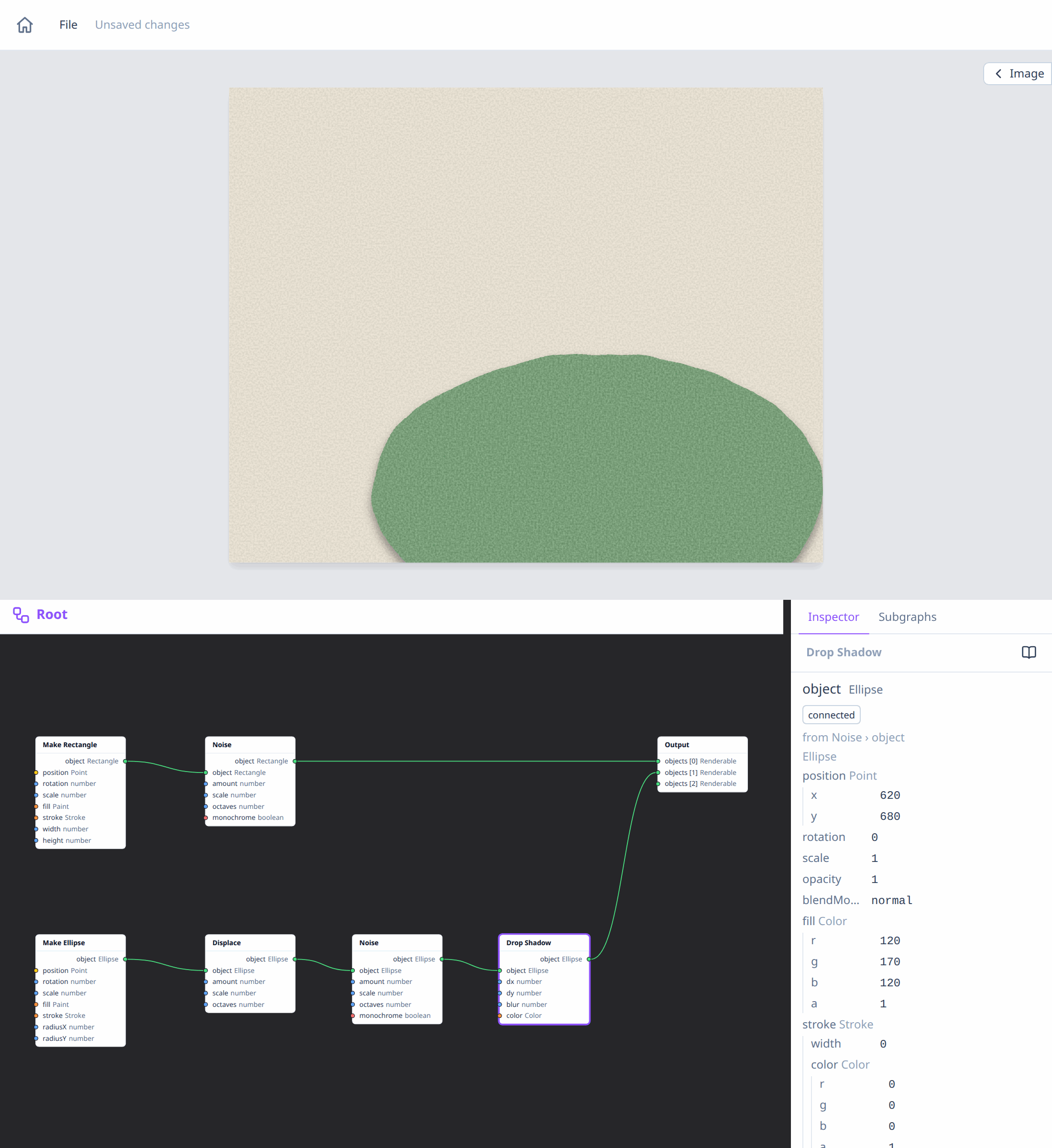
The order matters: each effect applies to the result of the ones before. Displace comes first, so the grain and the shadow follow the wobbly edge. Noise comes before Drop Shadow, so the grain is on the paper, not on its shadow. Try connecting them in another order to see the difference.
3. The front hill
Add a second Make Ellipse with position x 340, y 760, radiusX
340, radiusY 190, fill r 60, g 120, b 90 (dark green) and stroke
width 0.
It needs the same three effects. Select the hill's Displace, Noise and Drop Shadow nodes (Shift + click), right-click one of them and choose Duplicate: the copies keep their settings but not their wires. Connect the new ellipse through the copies in the same order, and the copied Drop Shadow to the next free slot of the Output.
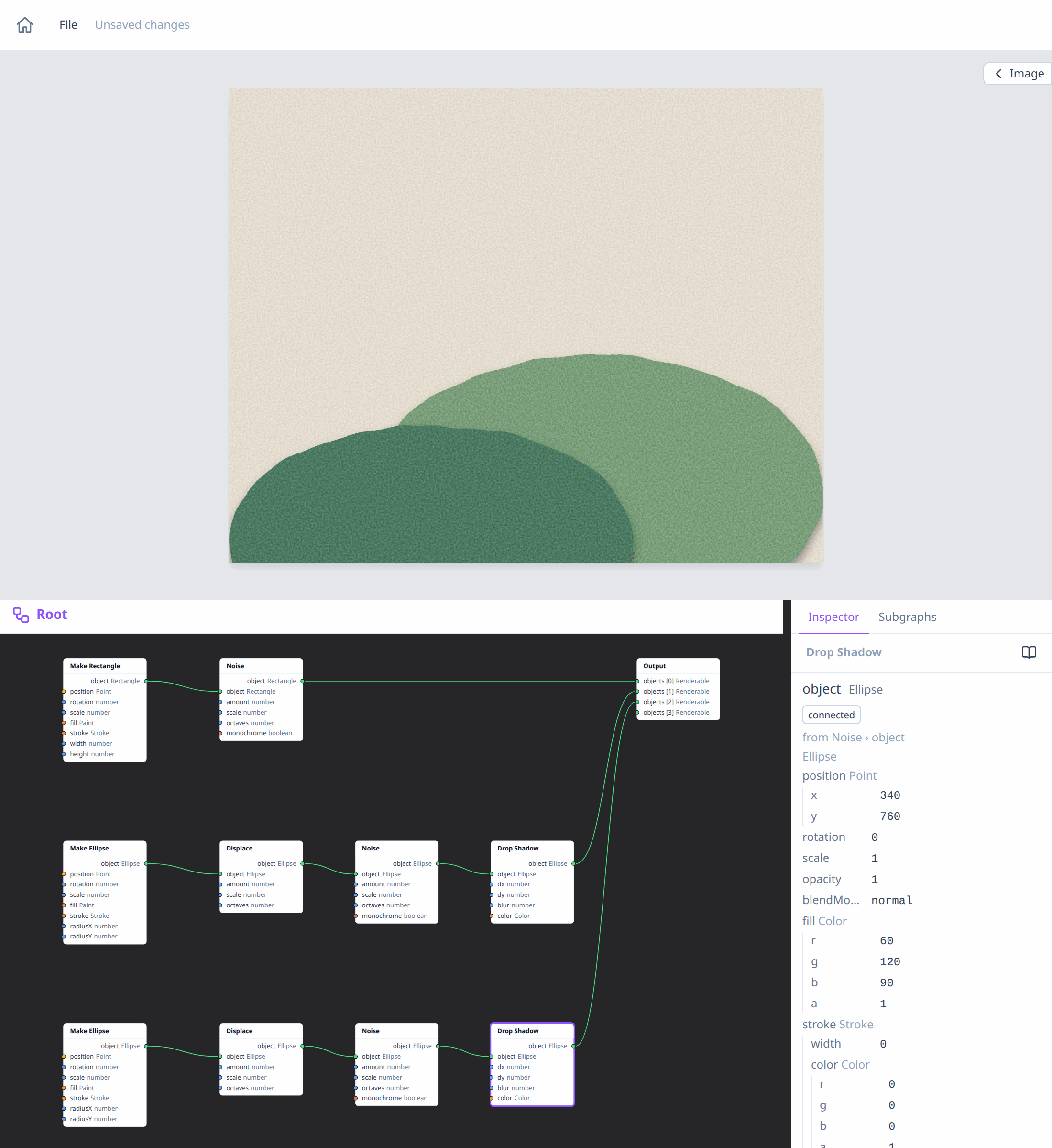
The front hill's edge wobbles differently from the back one's, although the settings are the same: Displace and Noise draw their pattern from their node's own sequence of random numbers, and the copies are new nodes. Each pattern stays the same every time the graph is evaluated. Not happy with a wobble? Select its Displace node and click the dice next to its seed in the inspector.
4. A sun behind a cloud
Add a Make Circle with position x 700, y 260, radius 90, fill
r 240, g 150, b 60 (orange) and stroke width 0, and a Make Ellipse
with position x 610, y 300, radiusX 110, radiusY 50, fill r 255,
g 255, b 255 and stroke width 0.
Add a Group node (Core → Group) and connect the circle, then the
ellipse, to its objects: the cloud is drawn over the sun. Add one more
Drop Shadow with dx 0, dy 8, blur 8 and color a 0.4, connect
the Group to it, and connect it to the next free slot of the Output.
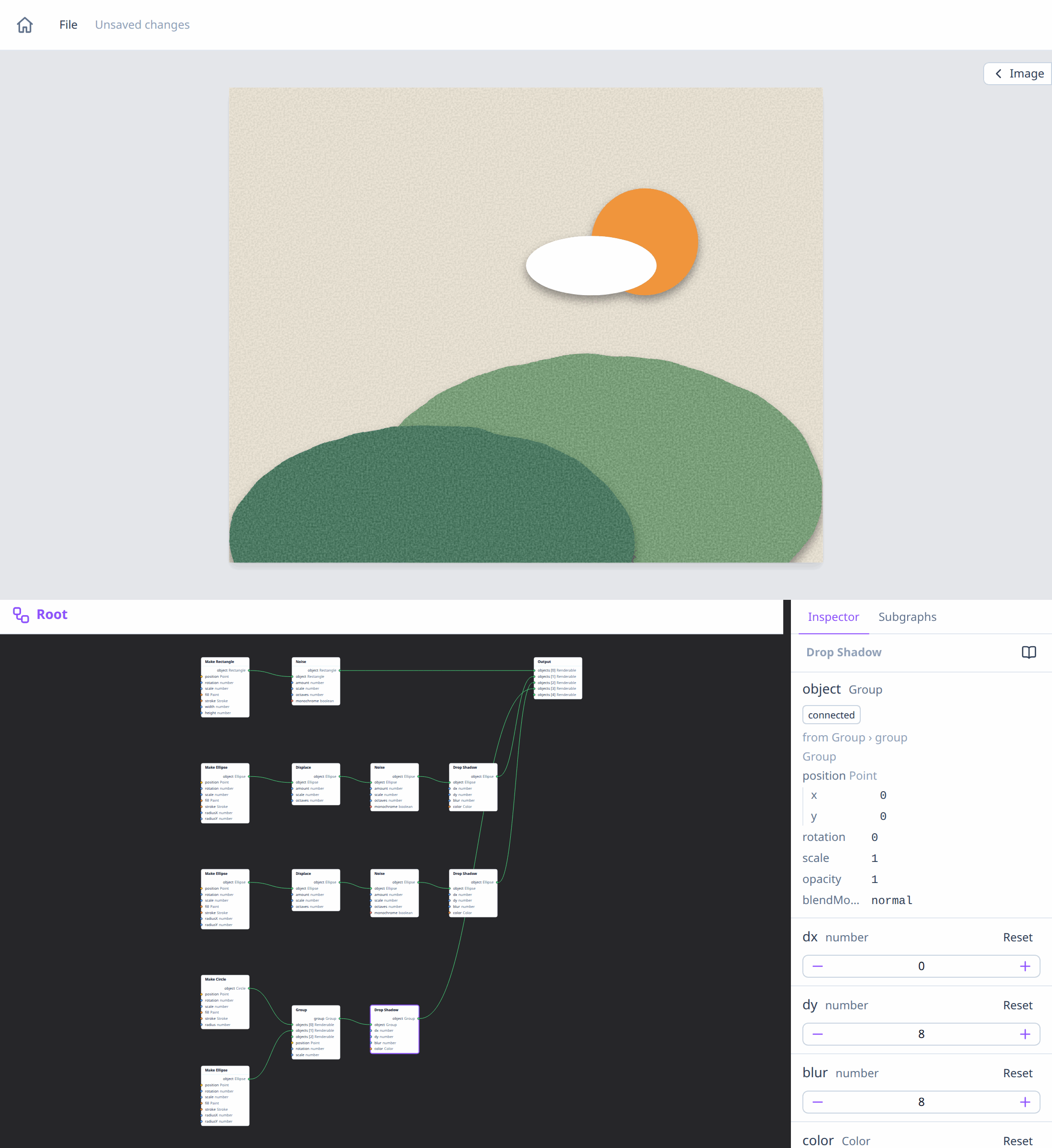
The shadow is cast by the group as a whole: one shadow around the sun and the cloud together, and none from the cloud onto the sun. That's what an effect on a group does. For a shadow from the cloud onto the sun, give the cloud its own Drop Shadow before the group instead. The result is the picture at the top.
How it works
Every effect node outputs a copy of its object with one more effect added to its list, so a chain of effect nodes builds the list in order. When the object is drawn, each effect applies to the result of the previous ones.
Effects are in the object's own units: the shadow offset, the blur and the wobble scale with it, and they don't change its bounding box, so nodes like AABB still see the plain ellipse. They're drawn in the preview and in Download SVG, as SVG filters that vector editors such as Inkscape also show.
Nodes used
- Make Rectangle, Make Ellipse and Make Circle.
- Group.
- Noise, Displace and Drop Shadow.
- Output.
Variations
- Torn edges. Lower Displace's
scaleto 20 for a ragged, torn-paper edge instead of smooth waves. - Overlapping paper. Add a Blend Mode node set to
multiplyafter the front hill's Drop Shadow: where it overlaps the back hill, the colors darken like layered tissue paper. - A glowing sun. Put a Glow (
colorr 255, g 210, b 80,radius20,strength2) on the circle before the Group. - Faded print. Group everything and pass the group through Adjust
Colors with
sepia0.6 andcontrast0.9.
See also
- Effects: every effect, chaining, groups and blend modes.
- Determinism and random, for the seeds of Noise and Displace.
- Freezing nodes: keep a result exactly as it is, whatever changes upstream.